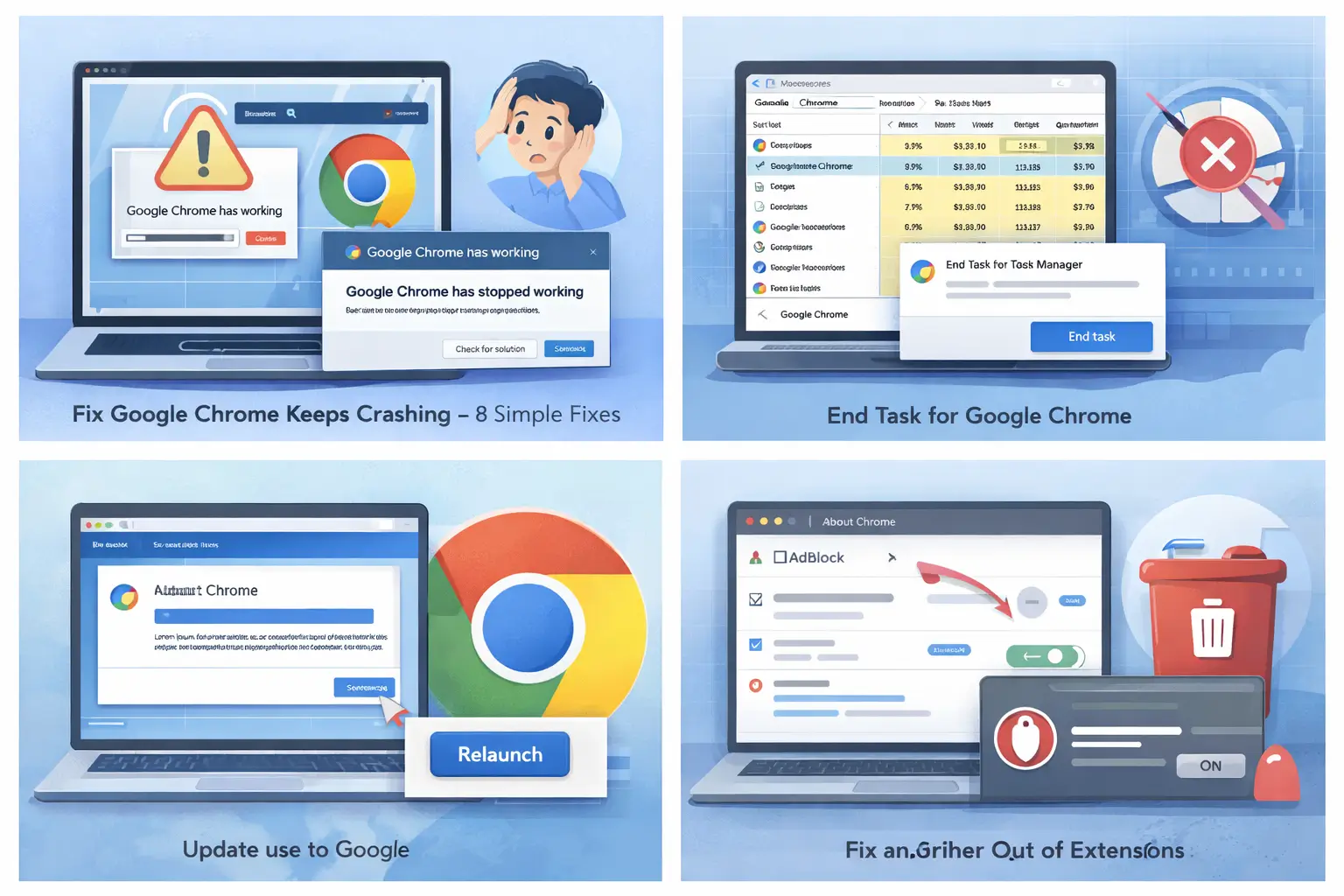
If Google Chrome keeps crashing on your Windows computer, you are not alone. Thousands of users experience this problem every day due to corrupted files, conflicting extensions, outdated software, or malware.
The good news is that this issue is usually easy to fix. In this step-by-step guide, you will learn 8 safe and effective solutions to stop Chrome from crashing and make it run smoothly again. These methods work on Windows 10 and Windows 11.
1. End Google Chrome Using Task Manager
Sometimes Chrome continues running in the background even after you close it.
Steps:
- Press Ctrl + Shift + Esc
- Click Google Chrome
- Click End Task
- Open Chrome again
This clears frozen processes that cause crashes.
2. Restart Your Computer
A simple restart can fix temporary system errors that affect Chrome.
- Save your work
- Restart your PC
- Open Chrome again
3. Clear Chrome Cache and Data
Corrupted cache files are a common reason Chrome crashes.
Steps:
- Open Chrome
- Press Ctrl + Shift + Delete
- Select Cached images and files
- Click Clear data
4. Disable All Chrome Extensions
Some extensions conflict with Chrome and cause crashes.
Steps:
- Go to chrome://extensions/
- Turn off all extensions
- Restart Chrome
- Enable them one by one
5. Update Google Chrome
Outdated versions contain bugs.
Steps:
- Go to chrome://settings/help
- Click Update
- Restart Chrome
6. Reset Chrome Settings
This restores Chrome to default without deleting bookmarks.
Steps:
- Go to chrome://settings/reset
- Click Restore settings
- Restart Chrome
7. Run Windows Malware Scan
Malware can break Chrome files.
Steps:
- Open Windows Security
- Click Virus & Threat Protection
- Run Full Scan
8. Reinstall Google Chrome
If nothing works, reinstall Chrome.
- Uninstall Chrome
- Restart PC
- Download Chrome again from official website
- Install and open
When Chrome keeps crashing, the problem is usually software-related and easy to fix. Follow these steps carefully and your browser should work normally again.
FAQ
Why does Chrome keep crashing?
Because of cache corruption, extensions, malware, or outdated files.
Will I lose my data if I reset Chrome?
No, bookmarks remain safe.
Does this work on Windows 11?
Yes, all steps work on Windows 10 and 11.